
Chat history and personal records
Capture long chat threads quickly for personal notes and records.
Scrollie helps individual users capture long conversations and pages faster, without manual stitching.
Not just another screenshot tool. Scrollie is optimized for scrolling content and production use.
Chat history and personal records
Capture long chat threads quickly for personal notes and records.
Article and feed archiving
Save long content from apps and web pages in one clean image.
Sharing workflow
Create polished long screenshots for social posts and personal sharing.
Designed for speed on mobile, no desktop required.
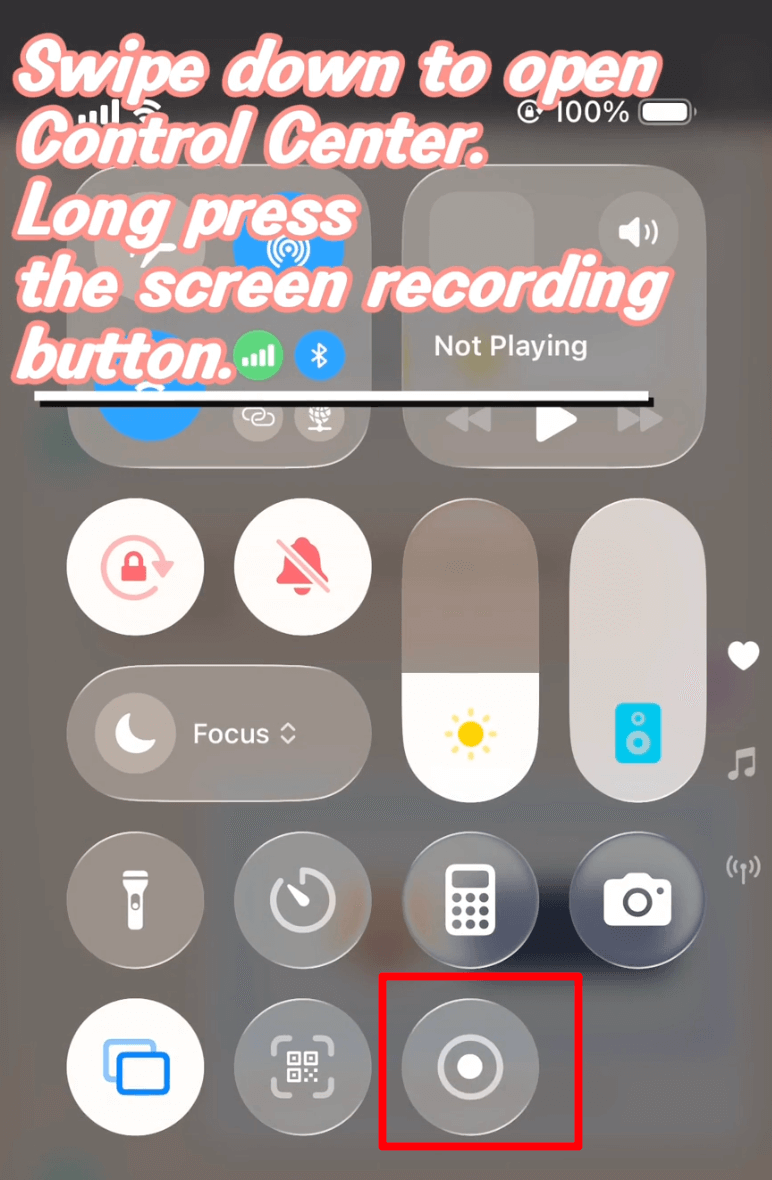
Enable Screen Recording once
Follow the short setup path for your iOS version.
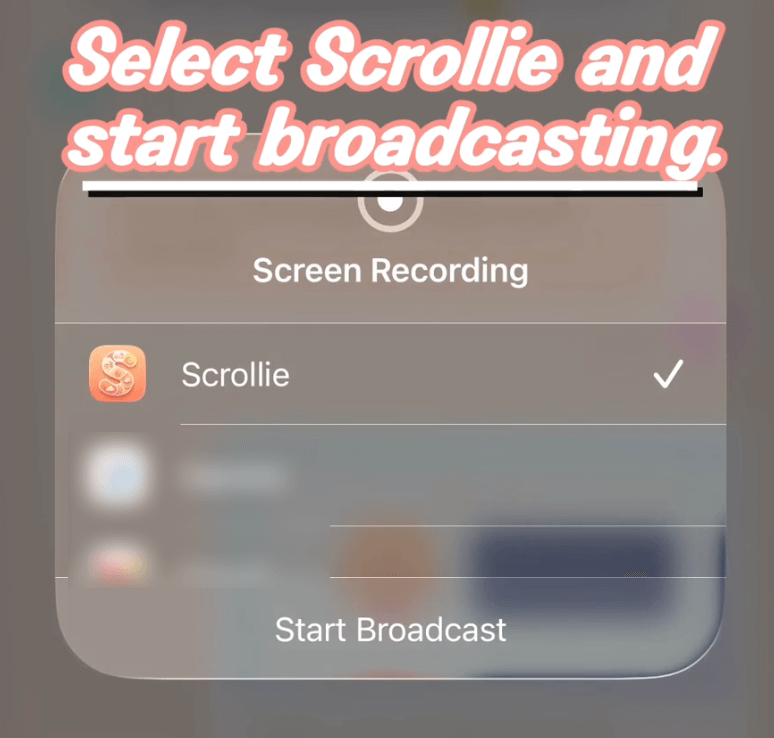
Start Broadcast with Scrollie
Scroll naturally while recording your target content.
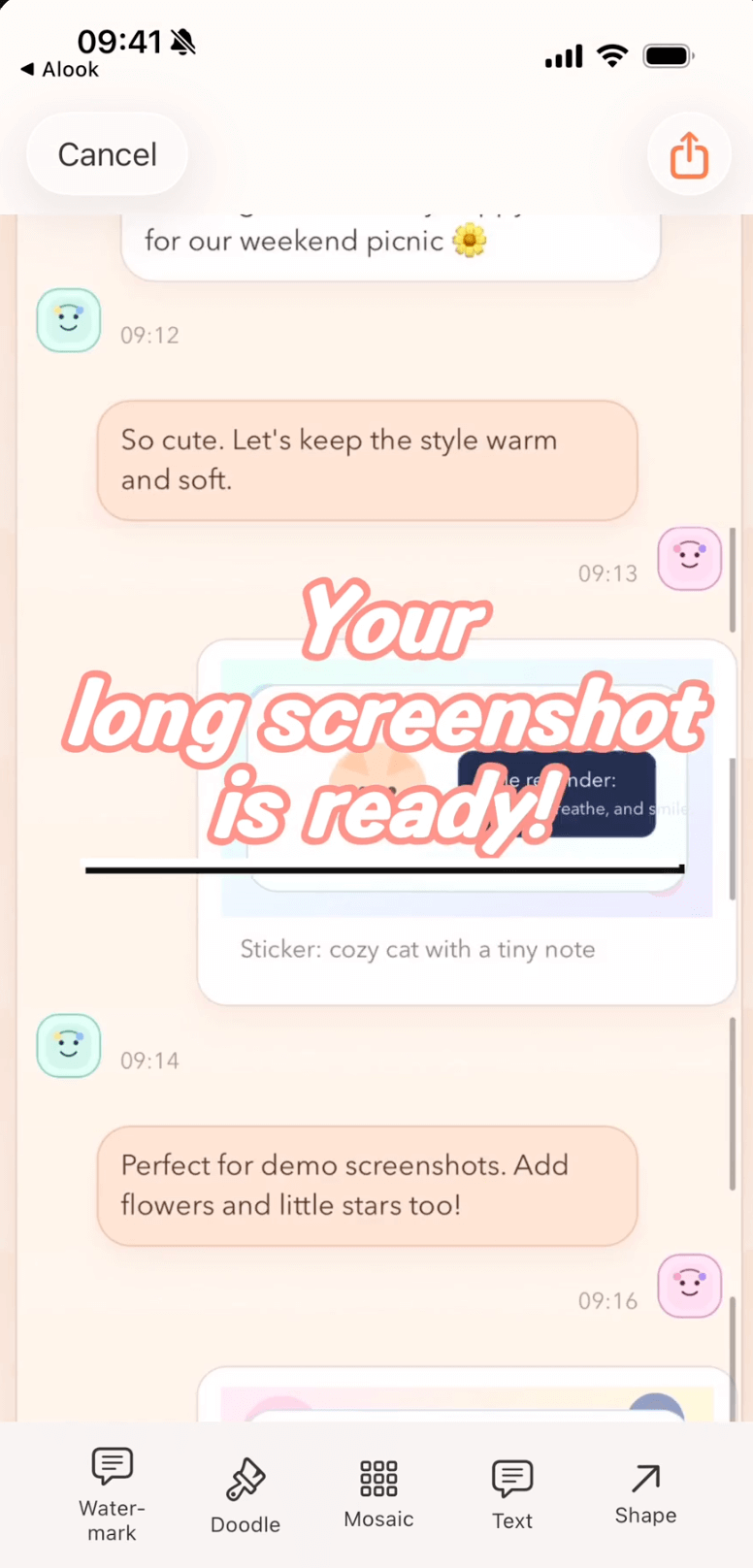
Open Scrollie and export
Detect, stitch, and share your long screenshot in minutes.
Less manual editing, less time, cleaner screenshots.
Before Scrollie
With Scrollie
No. Core stitching runs entirely on-device with no cloud interaction.
Scrollie supports iOS 16+. Setup steps are split for iOS 18+ and iOS 16-17.
Open Help and choose "Recording to long screenshot" for the mobile-first quick steps.
Start with the 30-second guide and complete your first long screenshot today.
No sign-up, no watermark, and your images never leave your device — everything runs locally in the browser.
Deeper walkthroughs for specific tasks, and honest comparisons with the apps you may be coming from.
Add a Custom Watermark to Photos on iPhone
Pick a built-in logo or upload your own with automatic background removal. Choose Tiled or Corner Badge, then tune position, size and opacity.
Add a Device Frame to a Screenshot on iPhone
Three paths — Apple Design Resources, web mockup generators, and an on-device app — with honest limits for each.
Auto-Group Photos into Collages by Trip
Auto-group a big batch of trip photos into ready-made collages by capture time, place and content, then save the set to an album in one tap.
Combine Multiple Screenshots on iPhone
iOS has no built-in stitcher. Compare Markup, the community Shortcut, and Scrollie — with Smart Cleanup, Fine-tune seams and drafts.
Drafts Inbox & Auto-Save on iPhone Long Screenshots
Every edit is auto-saved as a draft; portrait and landscape drafts are stored separately so rotating the phone never overwrites your work.
Erase Something from a Photo on iPhone
iOS 18 Clean Up requires Apple Intelligence. Scrollie's cleanup brush works on iOS 16+ any device — honest comparison and steps.
How to Make a Photo Collage on iPhone
iOS Photos has no built-in collage. Three real paths — Freeform, Instagram Layout, and a dedicated app — with honest limits for each.
How to Screenshot a Whole Webpage on iPhone
Safari Full Page for the free PDF path; Screen Recording plus Scrollie for anything not in Safari or when you need a real image.
How to Take a Long Screenshot on iPhone
Three legitimate methods — Safari Full Page, Markup, and a dedicated app — with honest limits for each.
iPhone Mockup Generator for Screenshots
Wrap a screenshot in a real iPhone frame — iPhone 17 series with official colors, per-slice mockup, and collage integration.
Layout from Instagram Alternative for iPhone
A Layout from Instagram alternative that adds templates, per-cell edits, Cleanup brush, auto-group by trip and a long-screenshot workflow.
Long Screenshot App for iPhone — The Full Picture
Stitch screenshots, turn a screen recording into one long image, edit with a magnifier, and never lose an edit thanks to auto-saved drafts.
Long Screenshot Shortcut vs Dedicated App on iPhone
Shortcuts stitchers are free and native, but one-shot. A dedicated app keeps the result editable: Fine-tune, Cleanup brush, drafts, collage.
Photo Collage App for iPhone (2–12 Photos)
2–12 photo templates, per-cell editing with doodle, mosaic and Cleanup brush, drag-to-swap cells, and auto-saved drafts on iPhone.
Photo Grid Alternative for iPhone
A Photo Grid alternative that pairs template collages with a long-screenshot workflow, Drafts and a Cleanup brush.
PicCollage Alternative with Long Screenshots
A PicCollage alternative that brings long-screenshot workflows into a collage app: Drafts, auto-group by trip, Cleanup brush.
Picsew Alternative: Drafts, Collage & Cleanup
Same long-screenshot core, plus Drafts, template collages, Cleanup brush, and auto watermark removal — things Picsew doesn't list.
Remove Watermarks from Photos on iPhone
Cleanup brush and one-tap auto watermark removal — two tools for two scenarios, both running on-device.
Save a Chat Conversation as One Long Image on iPhone
Two paths — manual stitching or screen recording — plus how to hide the messages you don't want to share.
Screen Recording to Long Screenshot on iPhone
iOS records the scroll, Scrollie turns it into one long screenshot — auto-stop after the scroll ends, overscroll-back handled, Fine-tune magnifier for seams.
Stitch Multiple Screenshots on iPhone
Auto overlap + Smart Cleanup + Fine-tune magnifier + drafts. Vertical or horizontal, exported as JPEG/PNG/HEIC/PDF/slices.
StitchPics / 长图拼接 Alternative for iPhone
Keep the stitch and template collage you know from StitchPics. Add Drafts, auto-group photos, Cleanup brush, auto watermark removal and PDF export.
Tailor Alternative for iPhone (Actively Maintained)
Keep the classic stitch flow. Add drafts, PDF, template collages, device mockups and a Cleanup brush — the layer Tailor never added.