
Quick access
Fastest path
Recording to long screenshot
Set up broadcast (iOS version split)
I cannot find Screen Recording
Add it first in Control Center setup. Follow Recording to long screenshot.
I long-press Screen Recording but cannot find Scrollie
If Screen Recording was added to Control Center before Scrollie was installed, Scrollie may not appear in the long-press list. Remove and add Screen Recording again, then retry. If it still does not appear, restart your iPhone.
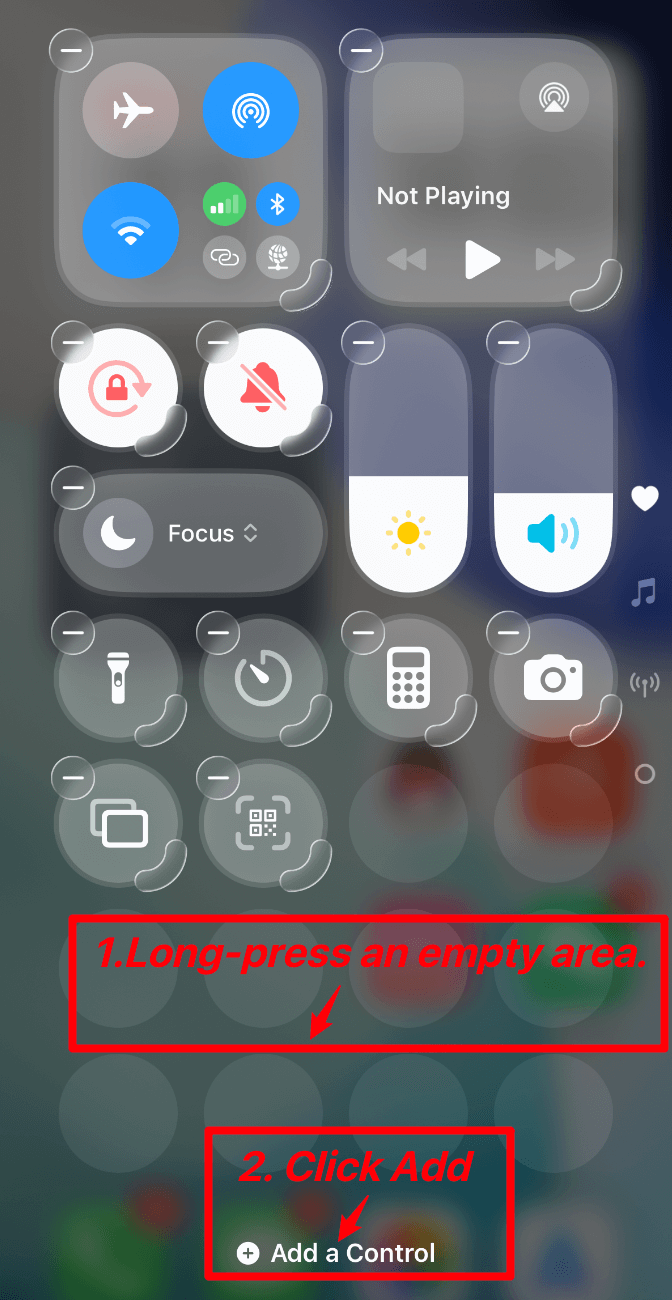
- Open Control Center and long-press an empty area to enter edit mode.
- Remove
Screen Recording. - Tap
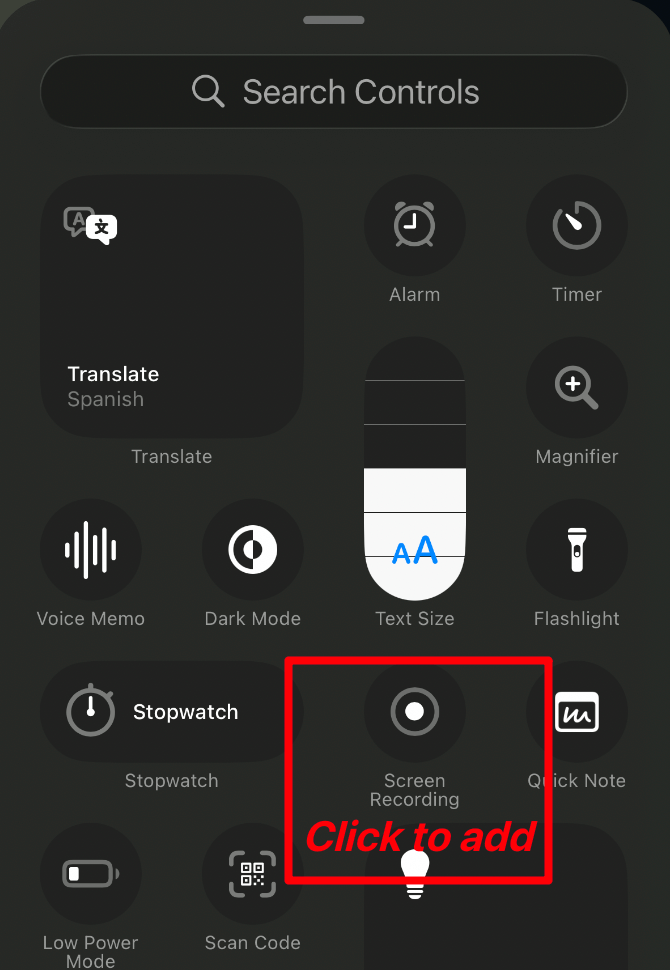
Add a Controland addScreen Recordingagain. - Long-press
Screen Recordingagain and check whetherScrollieappears. - If
Scrollieis still missing, restart your iPhone and try again.
iOS 18+
- Swipe down to open Control Center.
- Long-press an empty area to enter edit mode.
- Tap
Add a Control, then addScreen Recording.
iOS 16-17
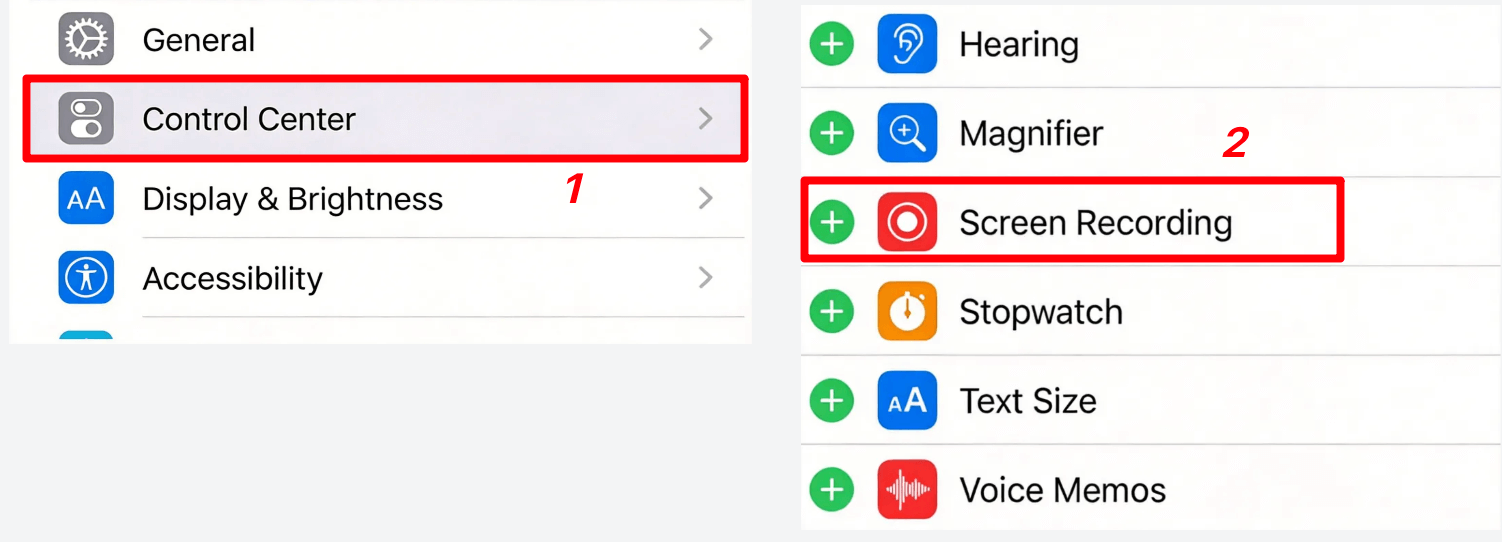
- Open
Settings. - Go to
Control Center. - Add
Screen Recordingunder More Controls.
Process the long screenshot
- Open Control Center and long-press the screen recording button.
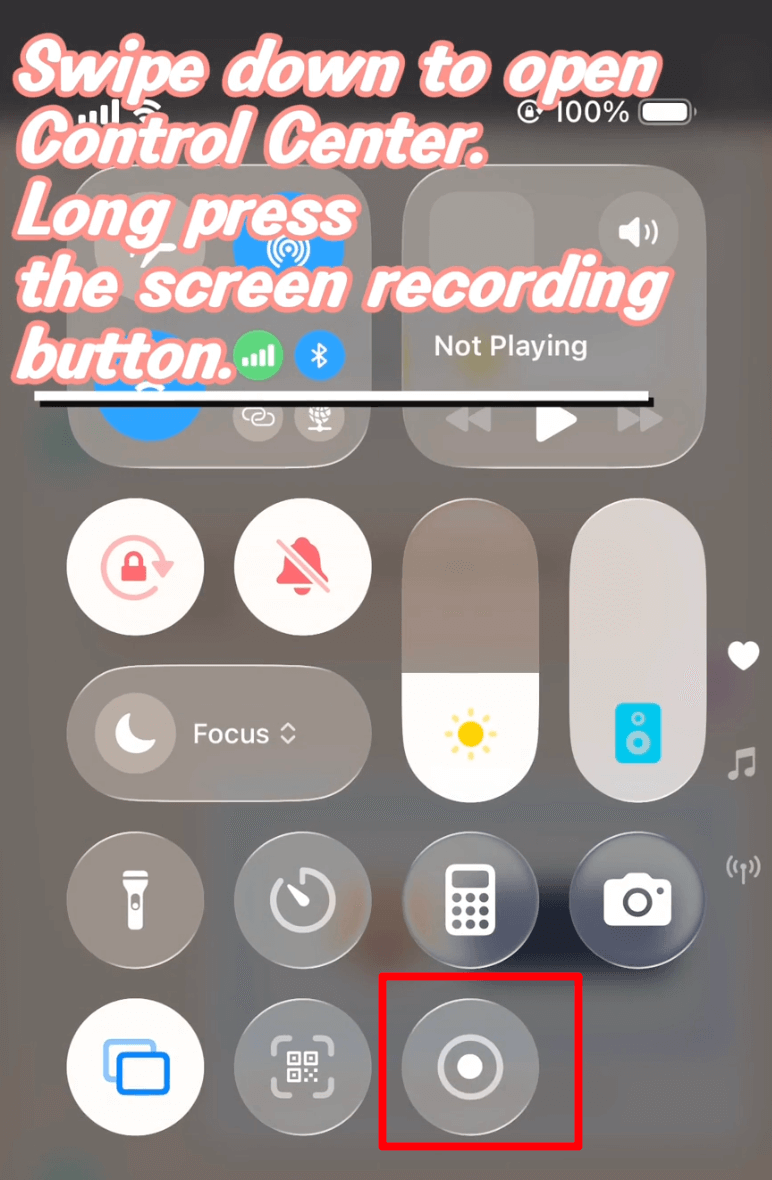
- Select
Scrollieand tapStart Broadcast.
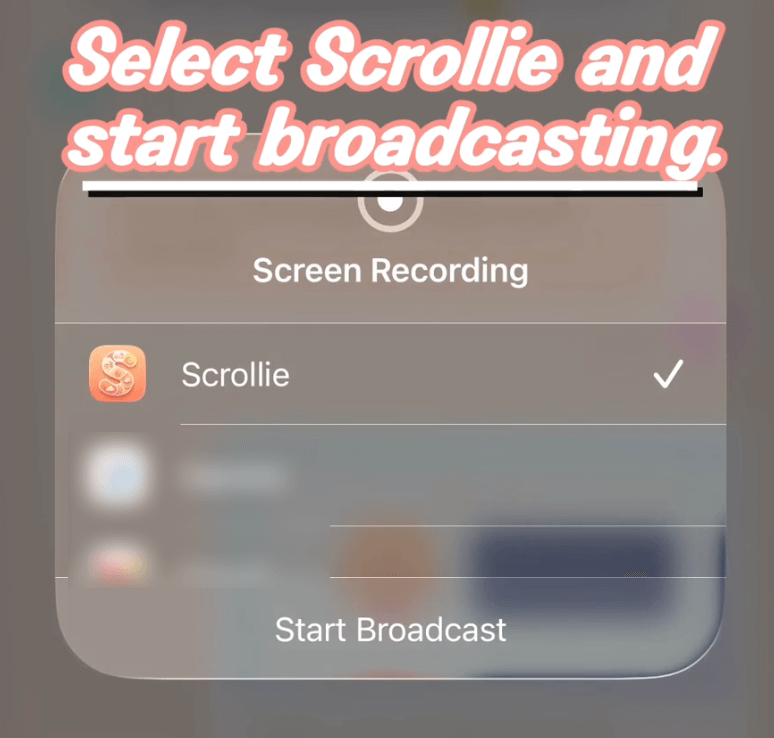
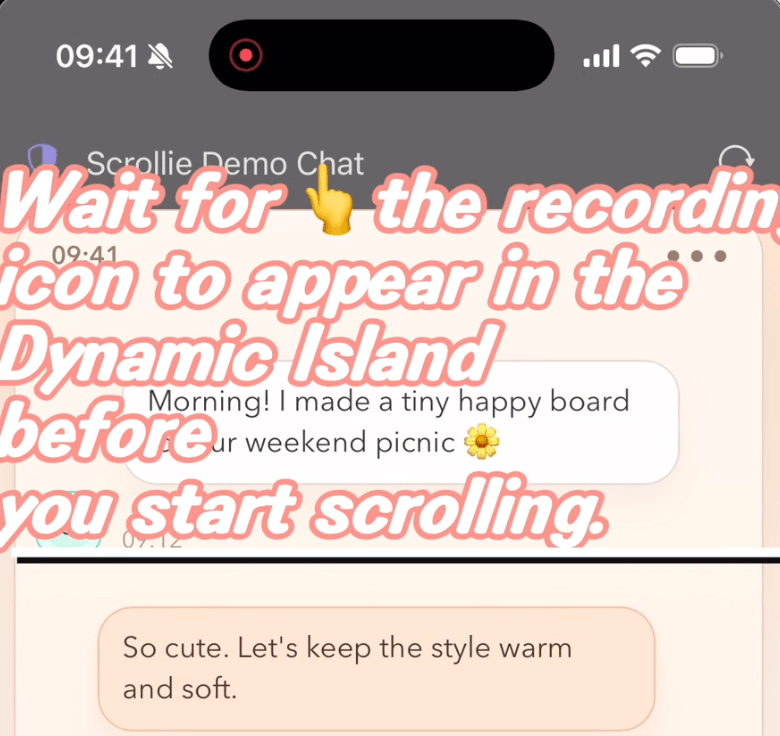
- Wait for the recording icon in the Dynamic Island, then start scrolling.
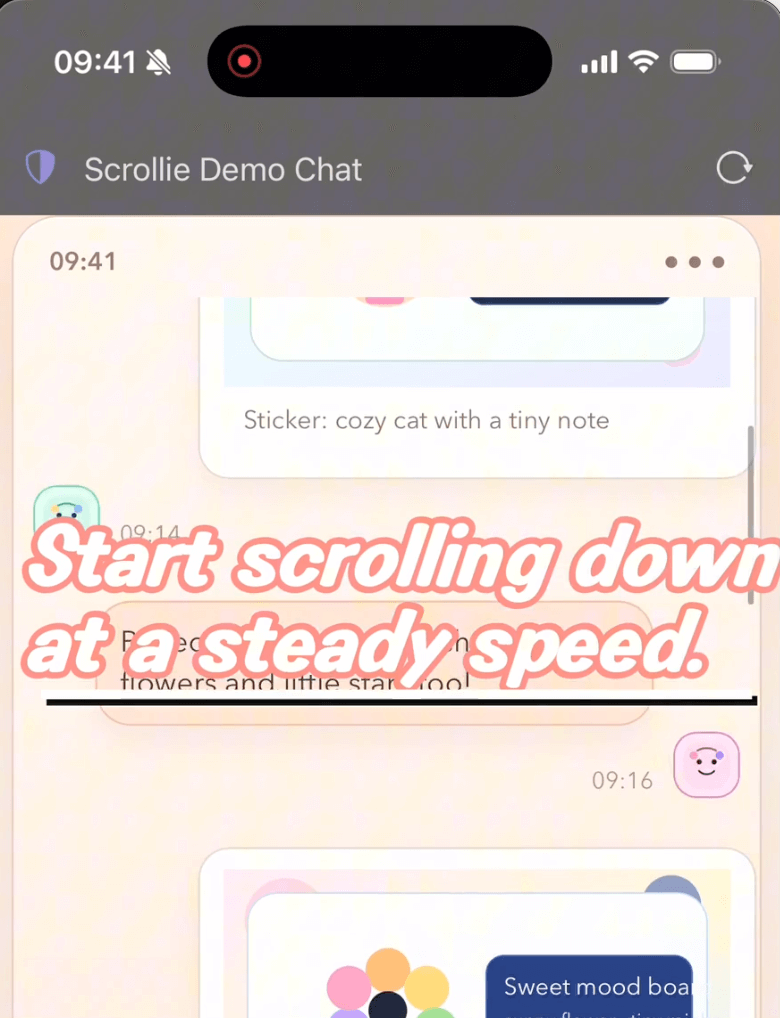
- Scroll down at a steady speed.
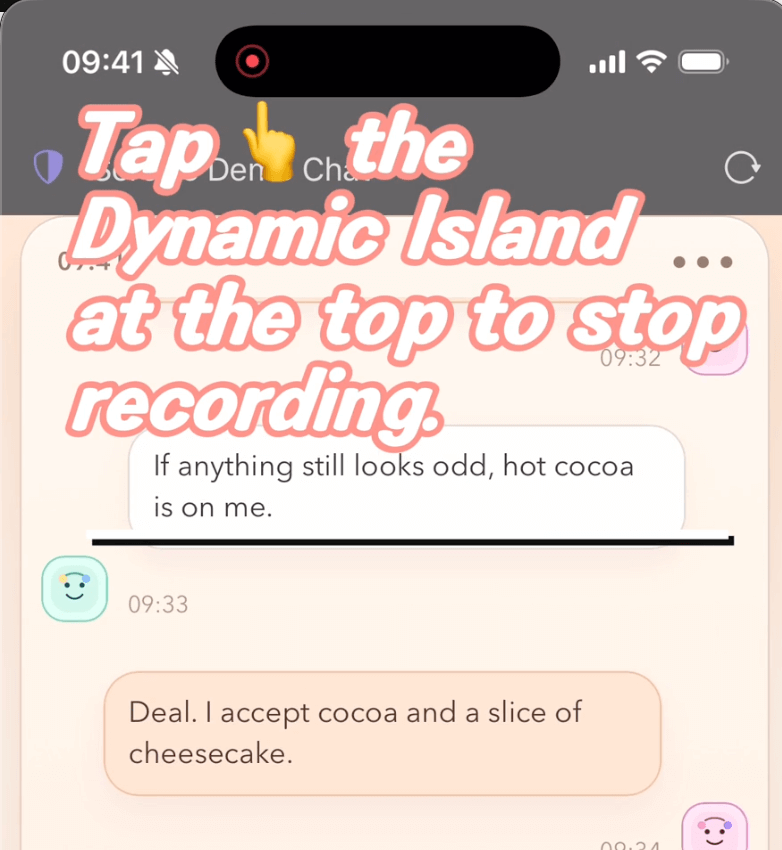
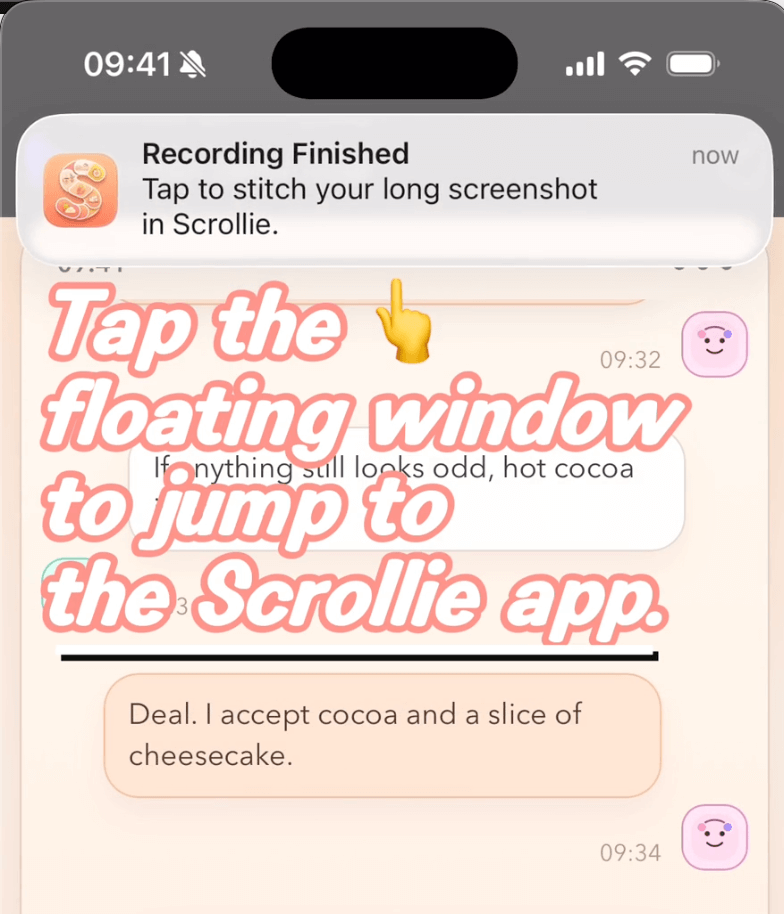
- Tap the Dynamic Island at the top to stop recording.
- Tap the floating notification to jump to Scrollie.
Recording was not detected
- Check if
Scrolliewas selected in Broadcast. - Reopen Scrollie and wait a few seconds.
- Confirm Photo Library permission is enabled.
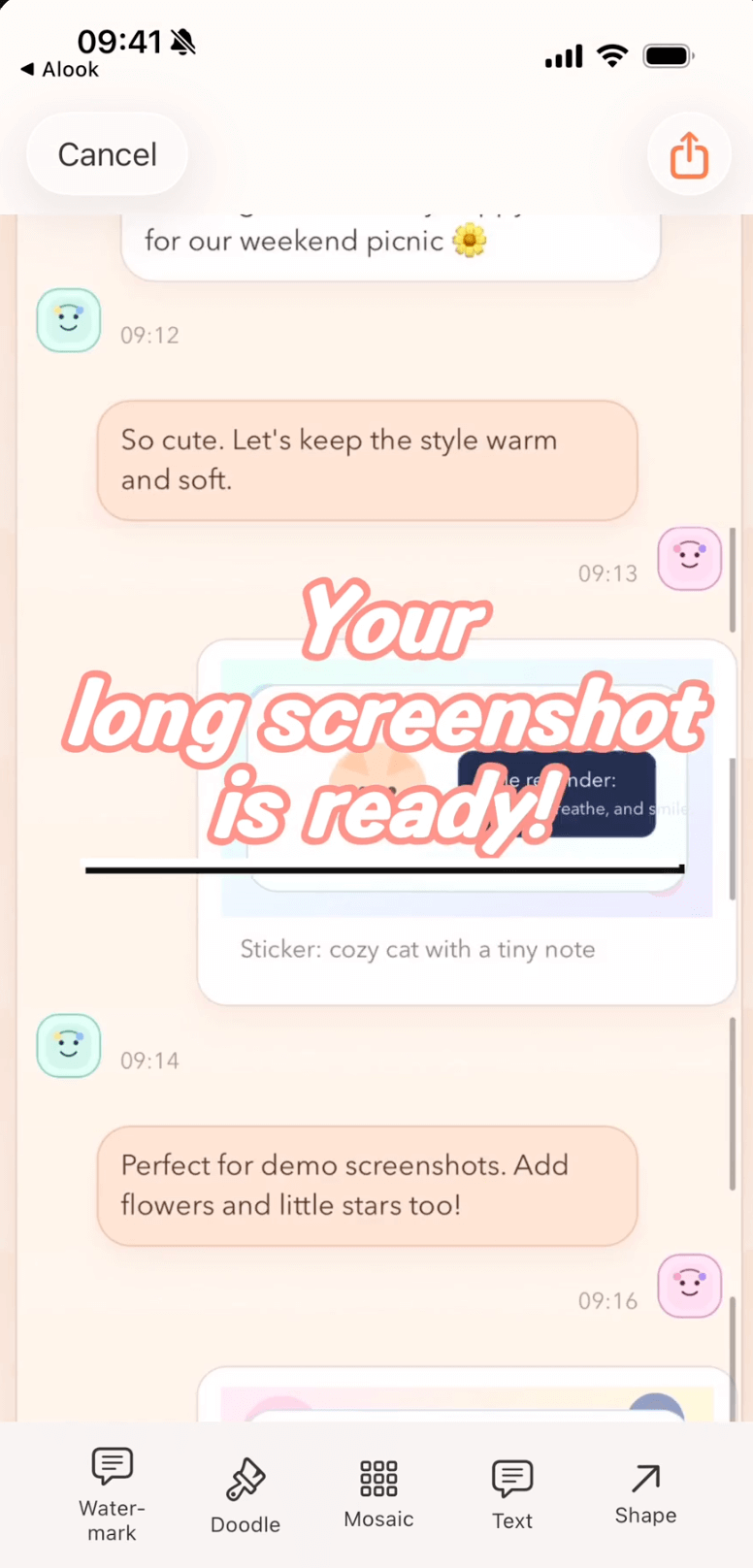
- Review and export the generated long screenshot in Scrollie.
Export is slow
- Close heavy background apps.
- Split one long recording into two parts.
Not clear enough
Broadcast recording on iOS can have lower resolution, so the output may look less sharp. Use the system screen recording flow for clearer results:
- In Control Center, tap the
Screen Recordingbutton directly (do not long-press). - After recording ends, the video is saved to Photos automatically.
- Open Scrollie and select that recording from Photos.